Party
A shared quest board: post jobs, take the ones you have time for.
What a party is
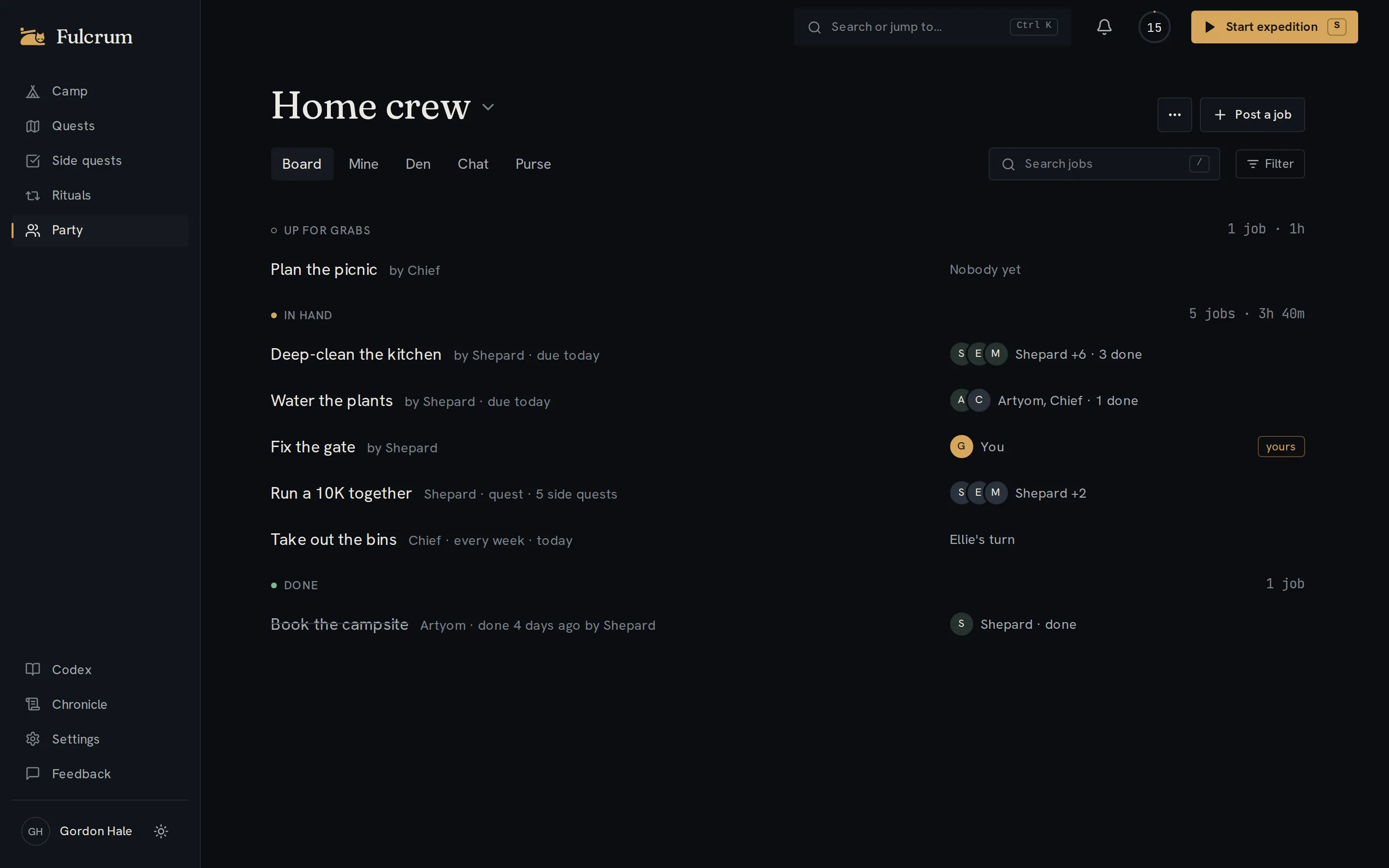
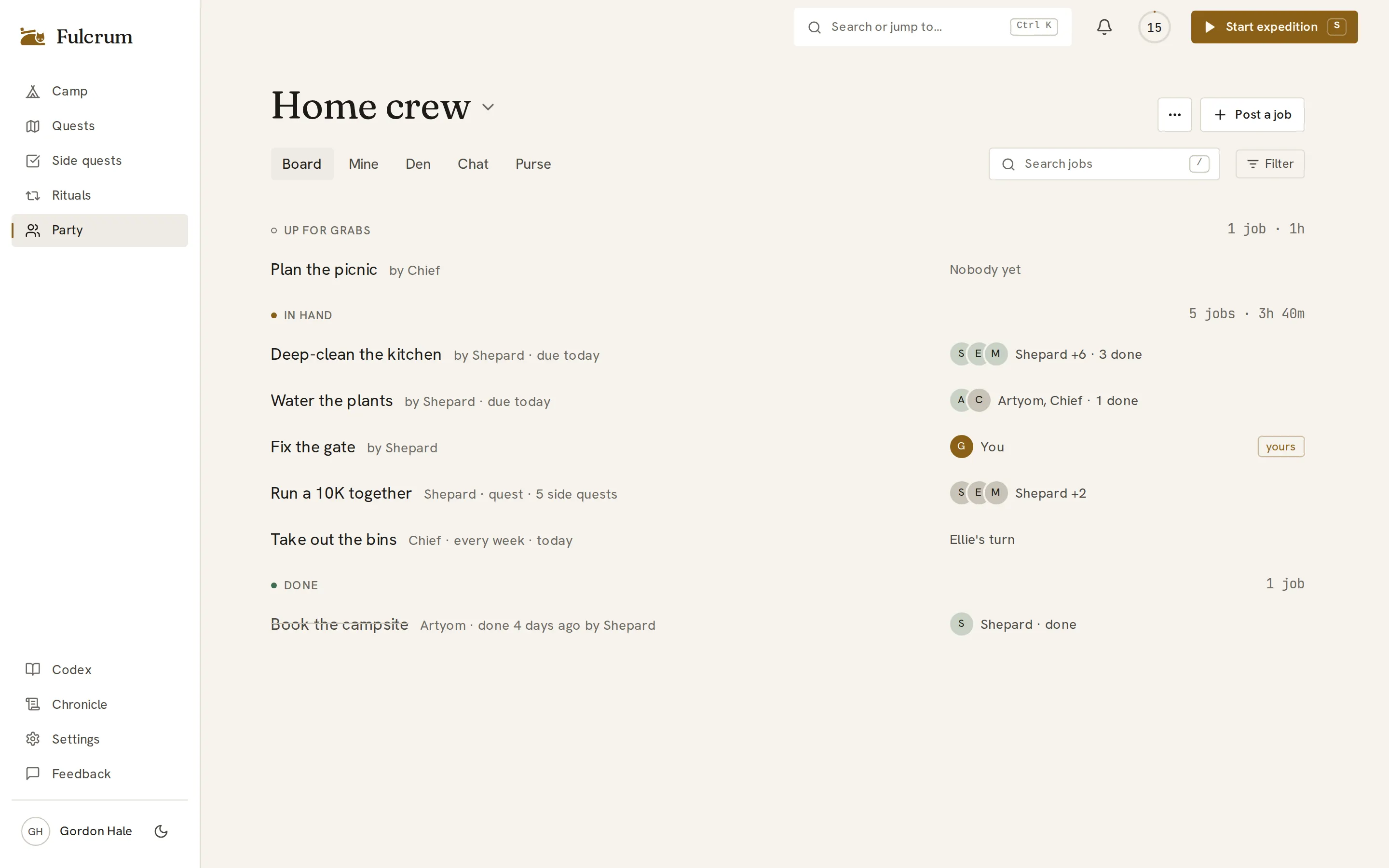
A party is a small group (up to 30 people) that shares a quest board. Anyone in it posts a job: something that needs doing, with the time it needs. Whoever has time takes it. Nobody assigns anything and nothing is ever put on your list for you. Open it from Party in the sidebar or the tab bar (on a keyboard, G then P).
Starting one and inviting people
Choose Start a party and give it a name. Then open the Den tab and choose Invite (the + on phones, or Invite people in the party's ⋯ menu). Send an invite by email, or choose Get an invite link and send the link however you like: anyone with the link can join for 7 days, and anyone in the party can make one. Someone new to Fulcrum signs up first and lands straight back on the invite. You can be in up to 20 parties and start up to 10.
The party's name at the top is also the switcher: tap it to move between your parties, start a new party, or join with a link someone sent you by pasting it in.
The board
- The party's tabs are Board, Mine, Den, Chat and Purse, all in one row. Board is everything on it, in three groups: Up for grabs, In hand and Done. Mine is just the jobs you took. Search by title. Filter narrows by due date, kind or tag and also holds the sort; it shows a count when filters are on, and each section has its own Clear.
- Each job is one row however many took it: a few faces, then a count, like “27 took · 9 done”. Open a job to see everyone who took it, done first, and narrow the list to Done, On it or Taken.
- A job can be for anyone, one person or a few, and the poster can tag it. Each job also has a comment thread where you can @mention a member.
- On a keyboard: J K move, ↵ opens a job, T takes it, N posts one and / searches. On a phone, the + button posts.
- Den shows everyone's cat resting round a campfire, with the member list under it (owners first, with how many jobs each took this week; search it by first name). Tap a cat or a name to meet it. The fire grows with what the party did today, and anyone can hide their own cat.
- The Purse keeps track of shared costs; the section below has the details.
The Purse
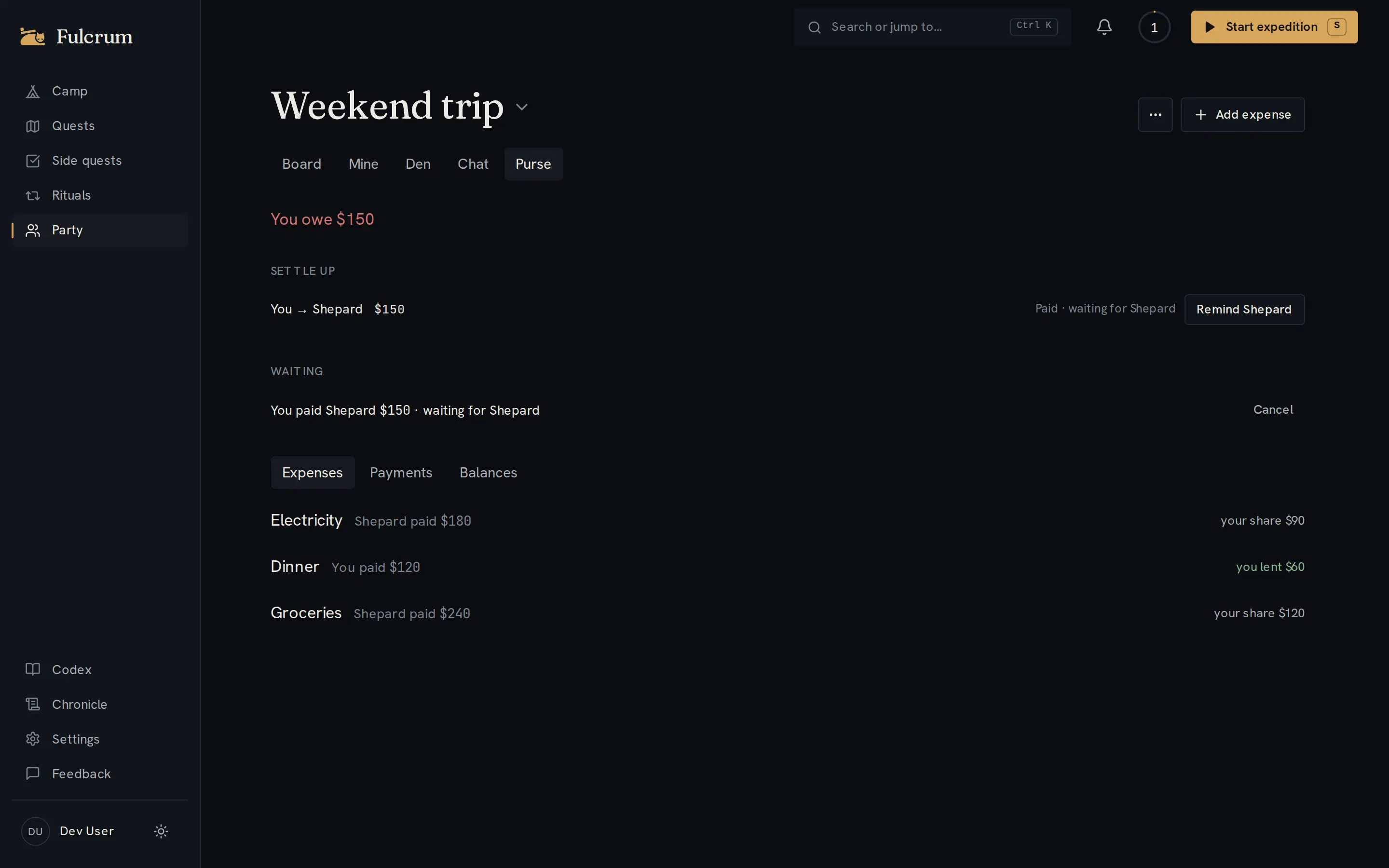
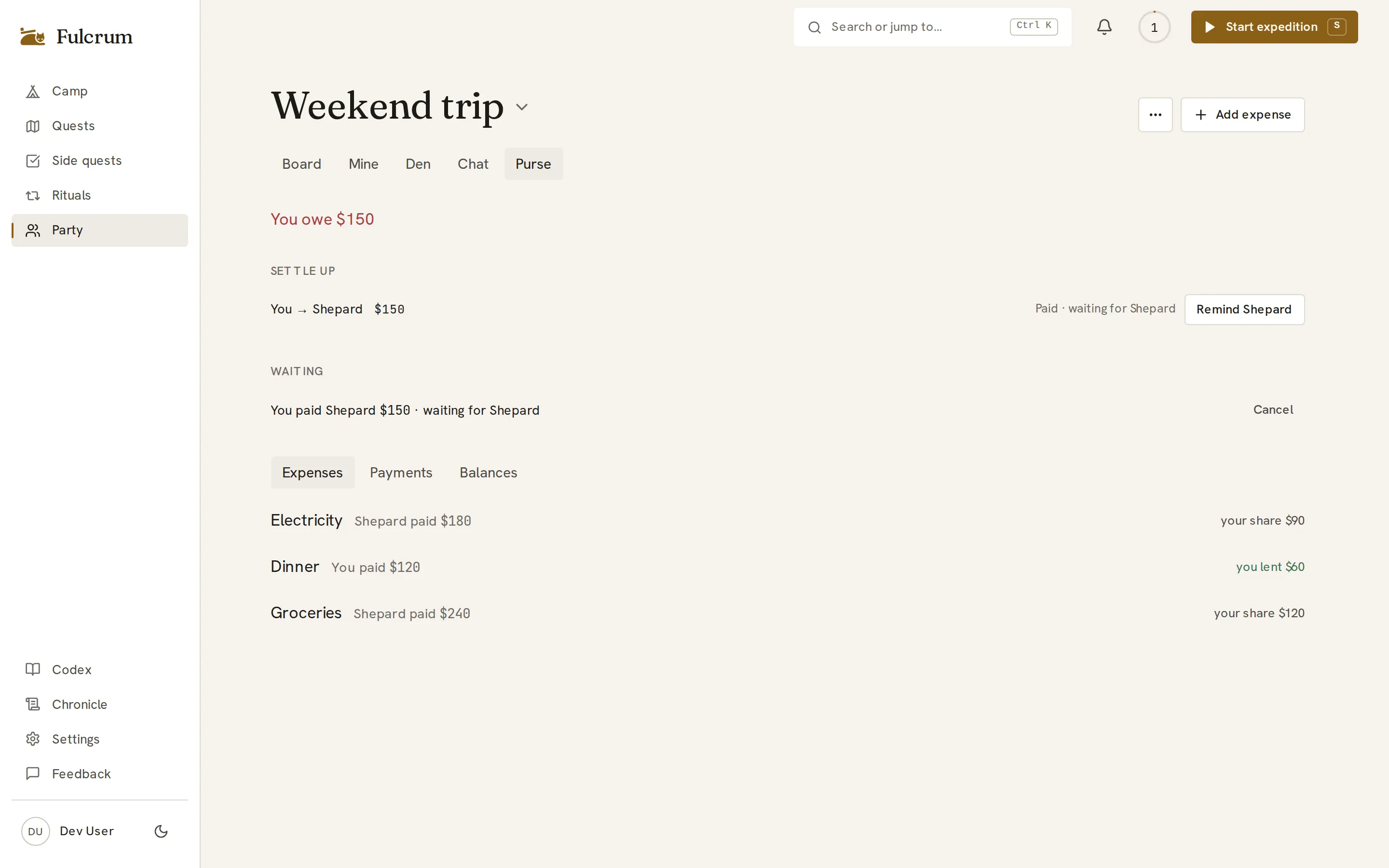
The Purse tracks the money your party shares. Everyone in the party sees the same numbers.
The first time it opens, the Purse asks for a currency. Anyone in the party can choose one with the Currency selector and Use this currency. It can change until the first expense.
Expenses, Payments and Balances are tabs on the Purse page. To add a cost, choose Add expense in the page header (or press N); it opens in a side drawer. Fill in What for, Amount and Date, then pick who paid under Paid by. Choose how to share it: Equally splits it between the people you tick, Exact amounts takes each person's amount, and Shares takes a weight from 0 to 100 for each.
Add someone who paid adds a second payer and the amount they put in; the first payer covers the rest. With a second payer the control reads Add another payer.
The Settle up list shows who owes whom. If you owe someone, Settle up records that you paid them, and Remind me makes a side quest to remind you. If someone owes you, Nudge sends them a reminder, at most once every three days, and Record payment is for when they paid you outside the app.
Add your UPI ID in Settings → Profile (type it, or upload a screenshot of your UPI QR) and the people in your parties can see it. When you owe someone who has one and the Purse is in rupees, Pay with UPI opens your UPI app on a phone, or shows a QR and the ID to copy on a computer. Then record the payment as usual.
A payment you record for money you sent waits under Waiting until the person you paid presses Confirm or Not received. Until then you can Cancel it.
While it waits, your row in Settle up reads Paid · waiting for Priya, and Remind Priya asks them to confirm. Reminders wait three days between them, like a nudge.
On the other side, their row reads Priya says they paid, with a Confirm button.
To change an expense, open it from the list and use Save changes or Delete. Only the owner, the person who added it, or someone who paid can change or delete it.
Posting a job
Post a job (or N on the board) with a title, the time needed, and optionally a due date and a note. Everyone else in the party gets a notification — bundled into one if a few things happen close together. You can edit a job until the first person takes it, and delete it any time; whoever took it keeps their side quest. A job stays on the board until it's deleted; a past due date doesn't close it. Posting earns no XP, and the board refreshes by itself as people post and take.
A job for everyone
If you own the party, you can post a side quest with Everyone must do it: it lands on every member's list straight away, unscheduled and high priority, and each person picks their own day. The board pins it and shows how many are done, and you can nudge whoever hasn't finished.
Taking a job
Take asks which day you'll do it and shows how full that day already is, so you only say yes to what fits. A side-quest job becomes one of your side quests, marked From your party; a ritual or quest job becomes your own ritual or quest. It counts like any other: on Camp, in the planner, for focus and XP. Several people can take the same job. Whoever posted it hears that you took it. Changed your mind? Drop it from my list in the job's details; nobody is told, and you can take it again.
What the party sees
- Your first name.
- The jobs you took, and whether you've started or finished them (with the time you finished).
- Never your email, your other side quests, rituals, focus sessions or XP. If you drop a job you took, it simply disappears from the board's list of takers, just as passing on it does.
Chat
Every party has a Chat tab: one calm thread for planning a trip, splitting a bill or asking who has the keys. It uses the same Markdown, photos and @ mentions as job comments, and # links a job on the board (or one of your own side quests, quests or rituals, which only you can open). The message box is one box: Enter sends and Shift+Enter adds a line; on a phone Enter adds a line and the Send button sends. You can reply to a message, and edit or delete your own; the party's owner can delete any message.
- Mentions push. @ a person, or @everyone, and they get a notification and a row in their inbox.
- One daily bundle. Plain messages never ping on their own. Once a day, at your summary time, you get one push such as “5 in Flat 4B, 2 in Trek club” for what you haven't read.
- Make it something. A message's ⋯ menu has Make a job, Save as side quest and Save as quest. Each opens the usual form filled in; nothing is created until you save it.
- Typing. People with the chat or a job open see “Asha is typing…”. Turn it off in Settings, Profile, Show when I'm typing.
- No read receipts. Nobody can see who has read what, or who is online. Your own unread line is yours alone. Someone who leaves keeps their name on what they wrote.
Searching the chat
The search button by the tabs on a computer (or /) opens a search over this party's messages: type two or more letters and it matches words in a message or the first name of whoever wrote it. Results show the sender and date with the matching words highlighted; pick one to jump to it in the thread, and Back to latestreturns you. Esc closes it.
Leaving, and closing a party
Leave or close a party from its ⋯ menu. Anyone can leave; the side quests you took stay yours. The party's owner can remove people, rename it and close it. If the owner leaves, whoever joined first takes over; when the last person leaves, the party closes. When a party closes, everyone who took jobs from it is asked what to do with the ones still open: keep them as their own, or remove them. Anything already finished stays, with its XP. Party notifications can be turned off in Settings → Notifications → Party activity.